Trainge Release Note - 4.2.6
New Features
Ticket Transfer
Feature Description
This feature enables venues to assist consumers in transferring specific tickets to other consumers.
Roles
Service Provider Operation Flow
- 1Go to [Member List] and select the member to assist.
- 2Click on the member's [Courses/Rentals] page and find the ticket to be transferred.
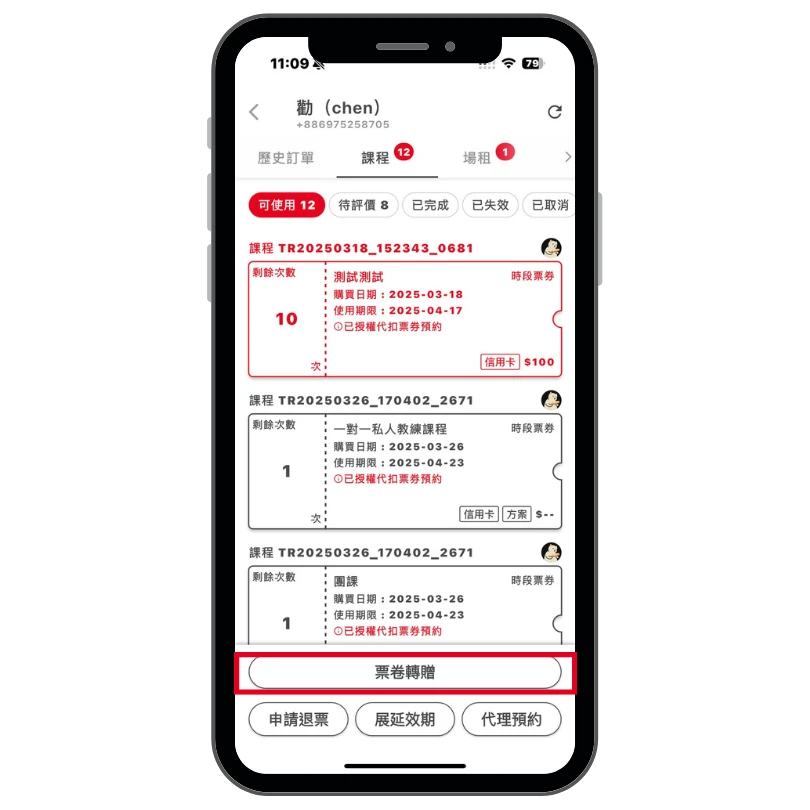
- 3Click the "Transfer Ticket" button.
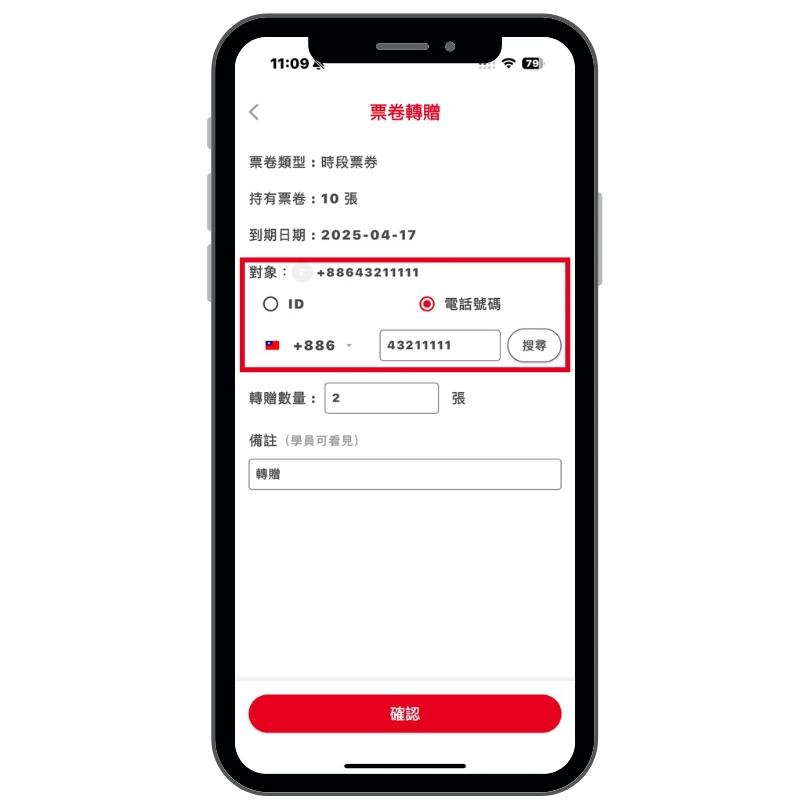
- 4Enter the transferee's phone number or ID.
- 5Enter the number of tickets to be transferred.
- 6Confirm the transfer to send the transfer invitation.
Transferor Operation Flow
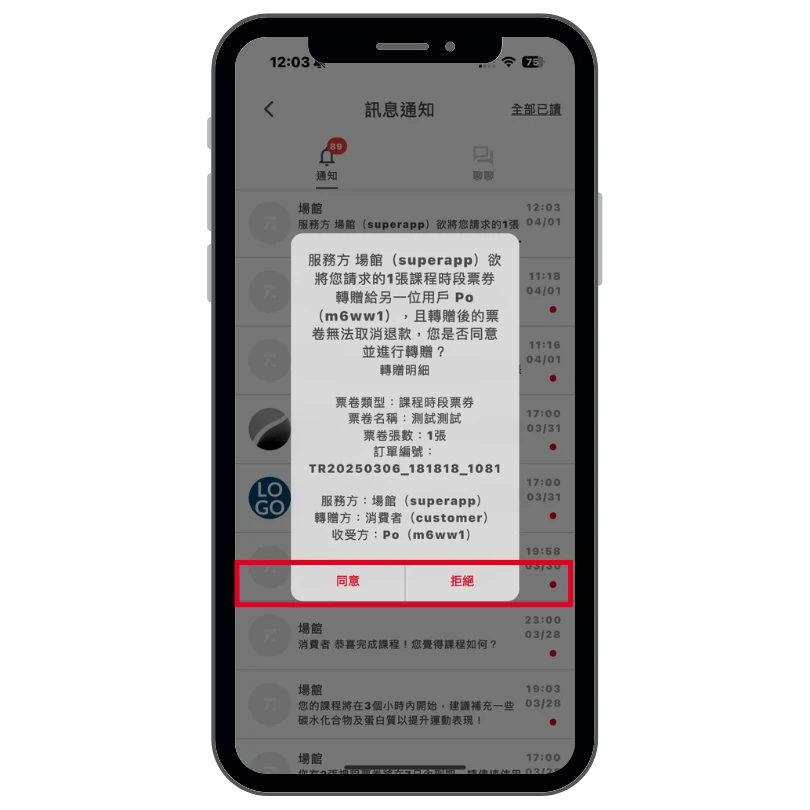
- 1Open the service provider's booking page or the Trainge App and tap the notification bell in the top right corner.
- 2Check the "Ticket Transfer Invitation" notification.
- 3Click "Agree" to complete the ticket transfer process.
Service Provider: Click Transfer
Enter Transferee Info
Transferor: Agree & Accept
Full/Partial Order Cancellation
Feature Description
To provide venues with greater flexibility in handling changing customer needs, we have introduced the Full/Partial Order Cancellation feature. Venues can now cancel full or partial orders within 24 hours after the order is placed. The system will automatically process refunds in accordance with the cancellation and refund policy.
Types of Cancellations
"Unused items" refers to products such as courses or venue rentals that have not yet occurred or been redeemed.
Service Provider Operation Flow
- 1From the [Account] page, go to [Member List] and select the member whose order you wish to cancel.
- 2Click the Order icon on the far right of the member's row to enter the [Order History] page.
- 3Locate the target order and click the drop-down symbol to view the order details and available cancellation options (highlighted in red).
- 4Choose the cancellation type: Cancel Full Order (full refund) or Cancel Unused Items (partial refund).
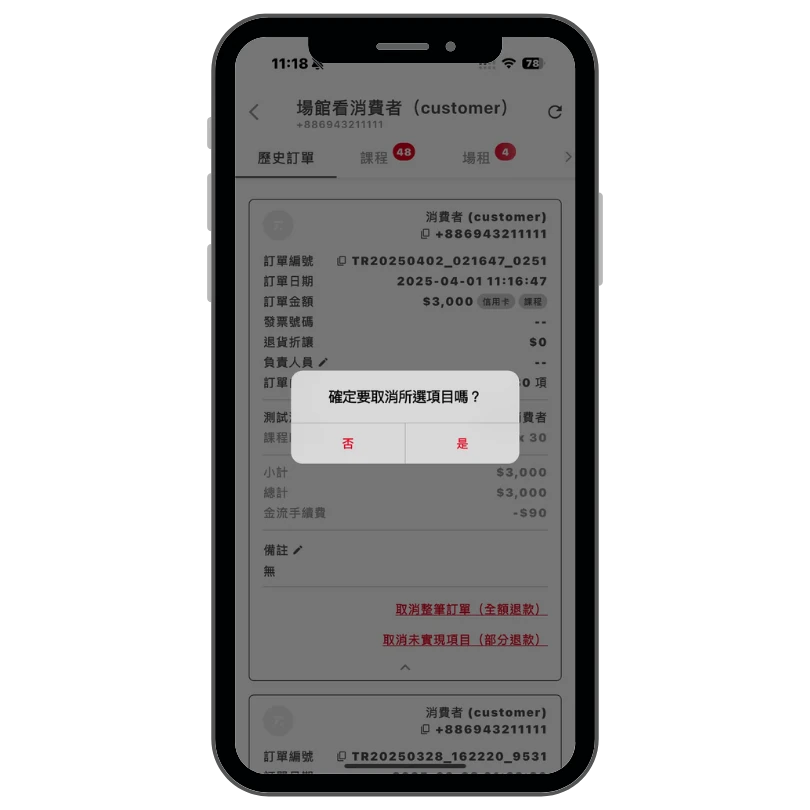
This action can only be performed within 24 hours of order creation. Once confirmed, it cannot be undone.
Go to Orders
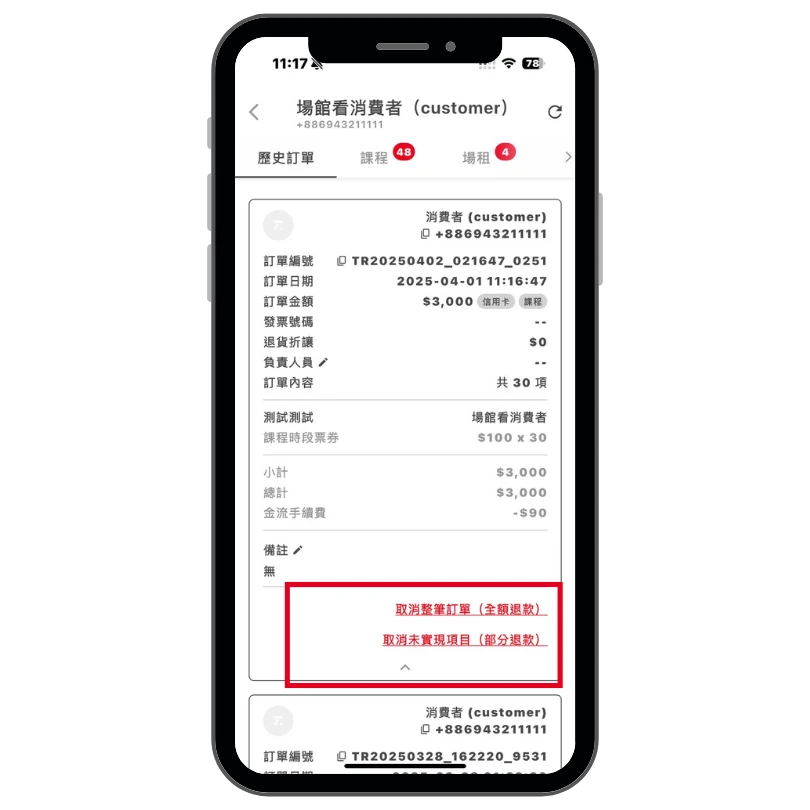
Select Cancellation Type
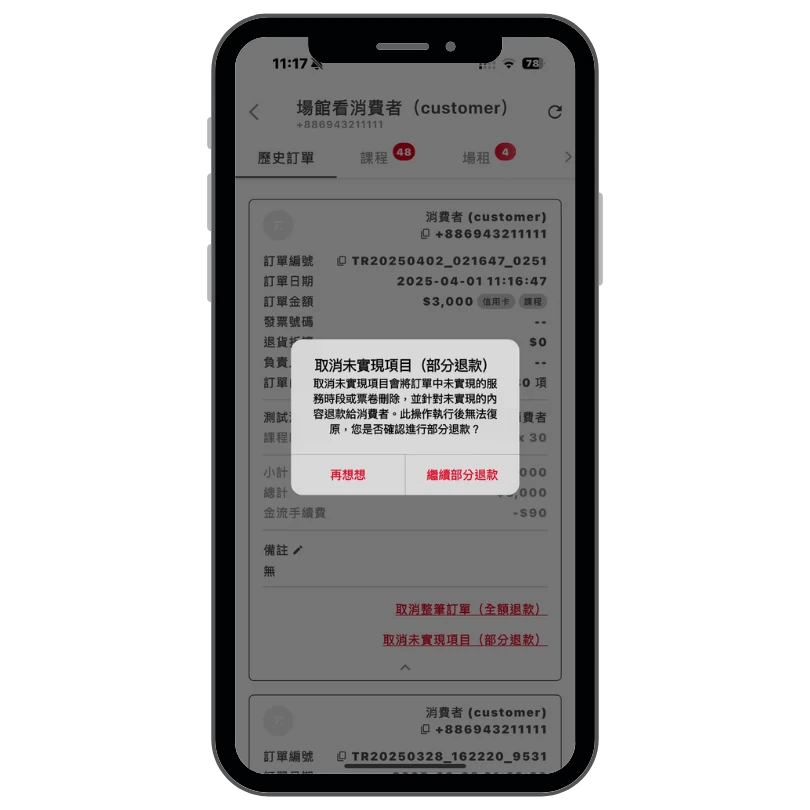
Complete Order Cancellation
Support for "Cash/Gift" Discount Code Application
Feature Description
When venues distribute products or services, entering a valid discount code will prompt the system to automatically calculate and apply the corresponding discount amount. This function supports both "Cash" and "Gift" distribution formats.
Discount codes must be pre-configured with the assistance of the Trainge team.
Service Provider Operation Flow
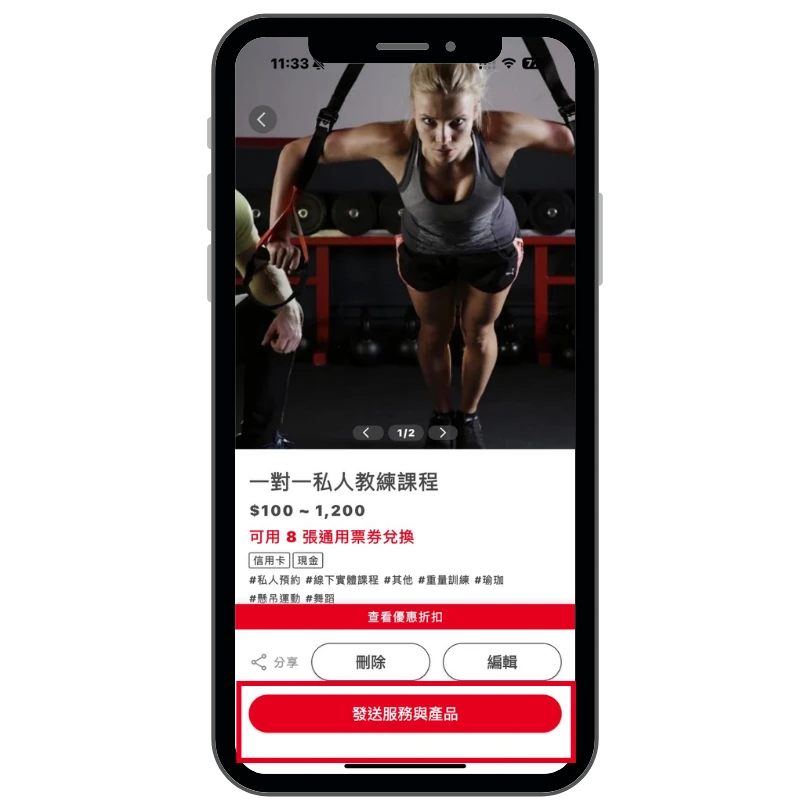
- 1Go to the designated product's [Send Services and Products] page.
- 2Enter the member's phone number or ID, and select the distribution format (Cash / Gift).
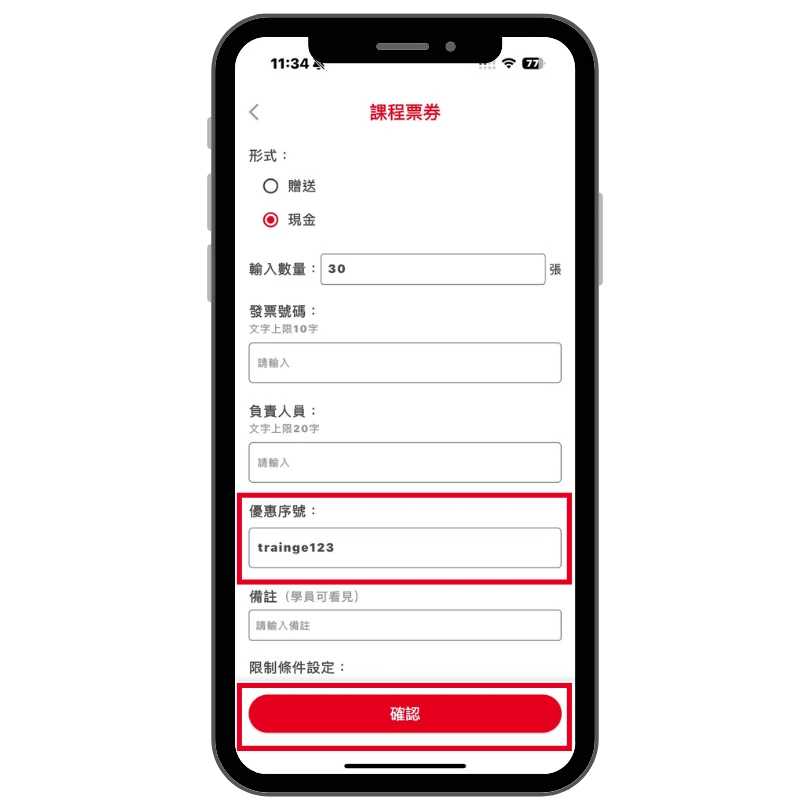
- 3Enter the discount code in the "Promotion Code" field.
- 4Once the discount amount is confirmed, proceed to complete the distribution.
Click Send
Select a Consumer
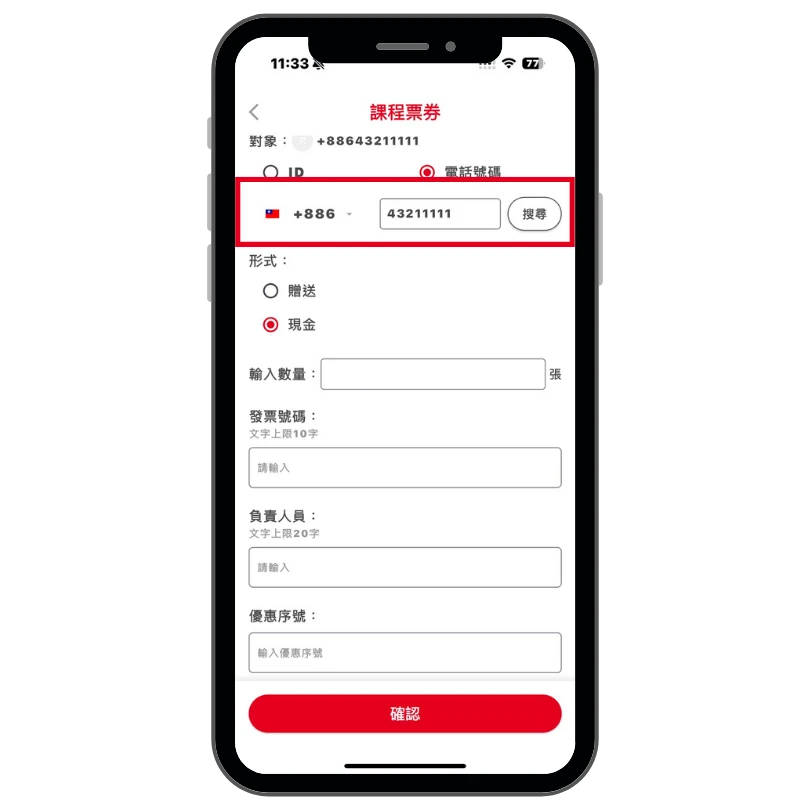
Enter the Promotion Code
Training Session Records
Feature Description
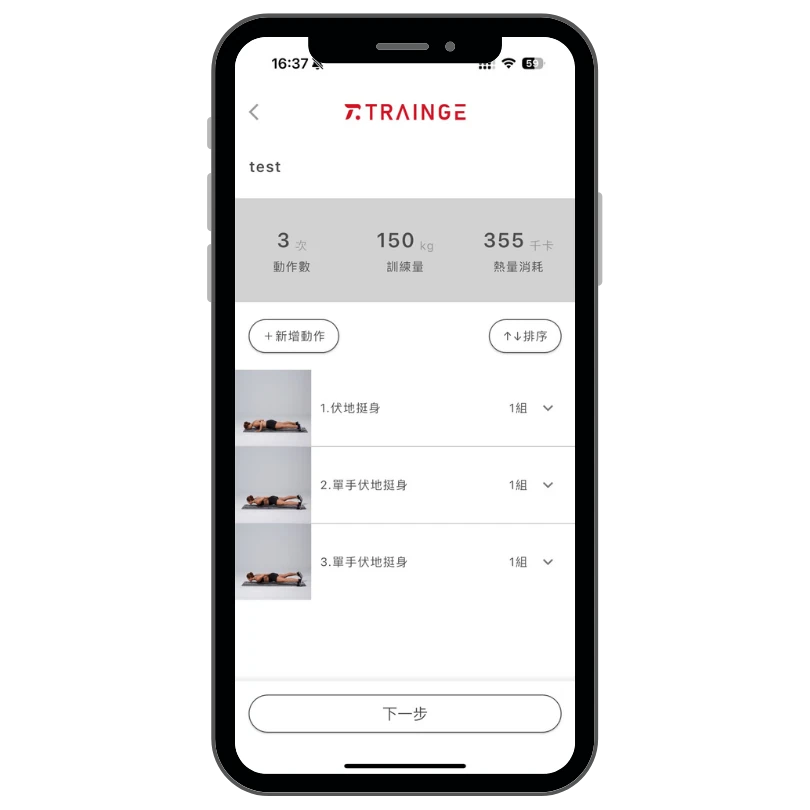
With the Training Session Records feature, coaches can document each training session for their students. This may include details such as the exercises performed, intensity, and progress on the day of training — providing students with a clearer understanding of their course development over time.
Service Provider Operation Flow
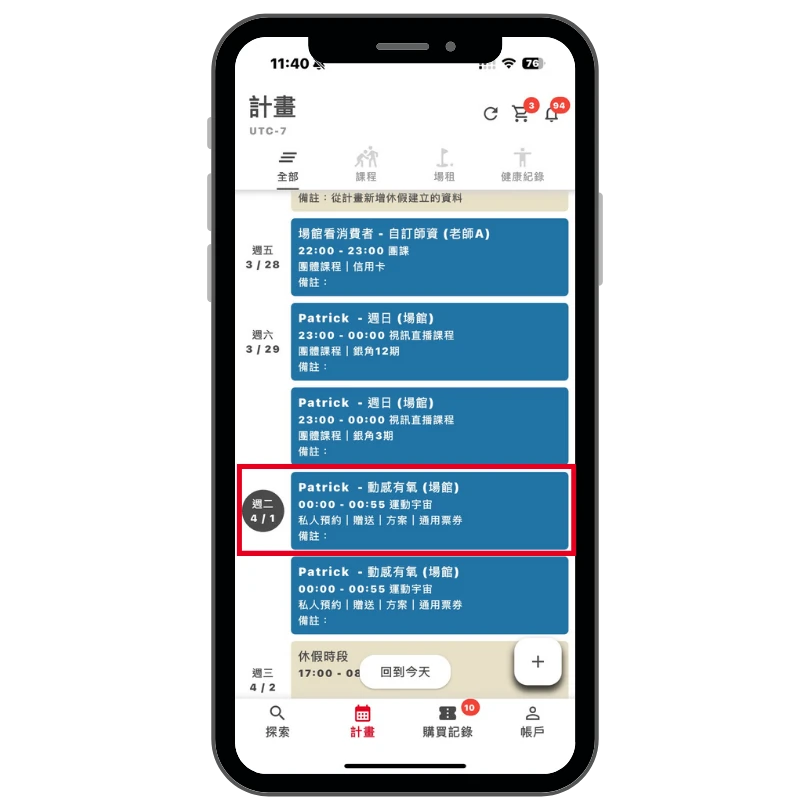
- 1Go to [Plans] and click on the corresponding course.
- 2Select the student whose session you wish to record.
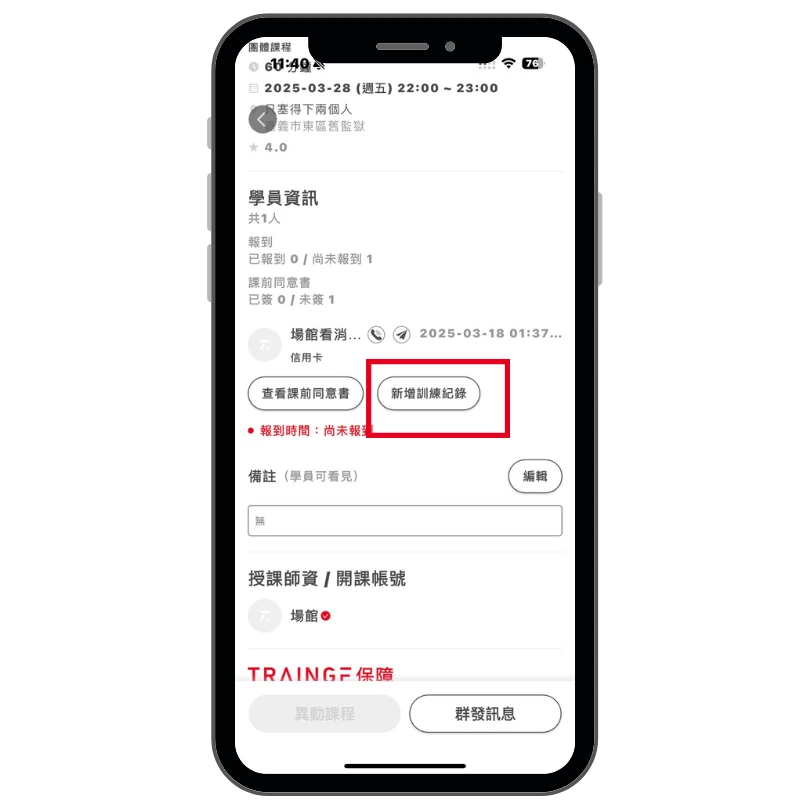
- 3Click "Add Training Log", enter the training details and parameters, then save to complete the entry.
Select a Class Event
Add Training Log
Enter Details
Synchronization with Google and Apple Calendars
Feature Description
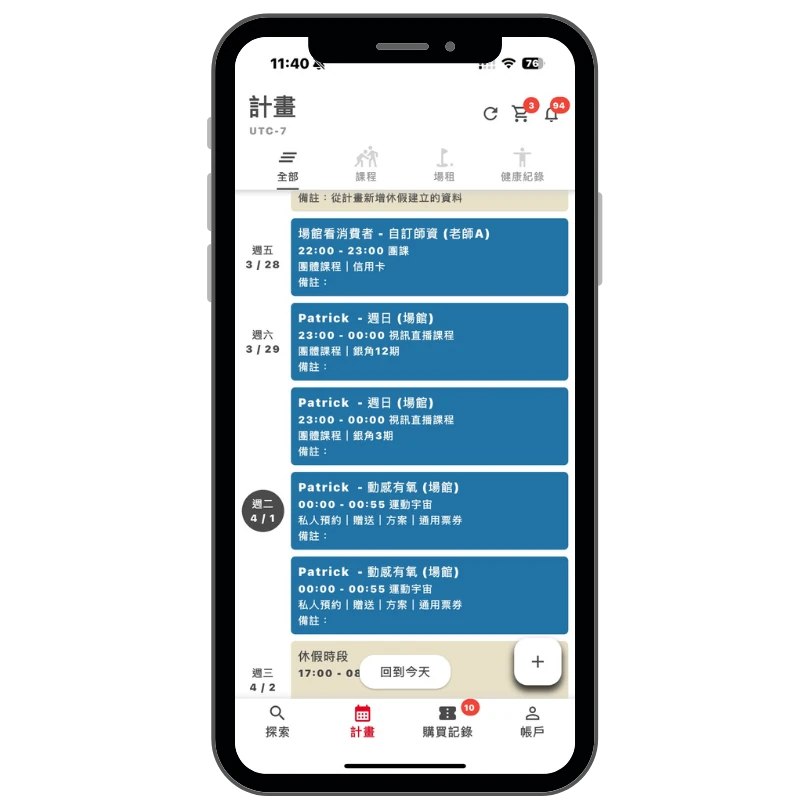
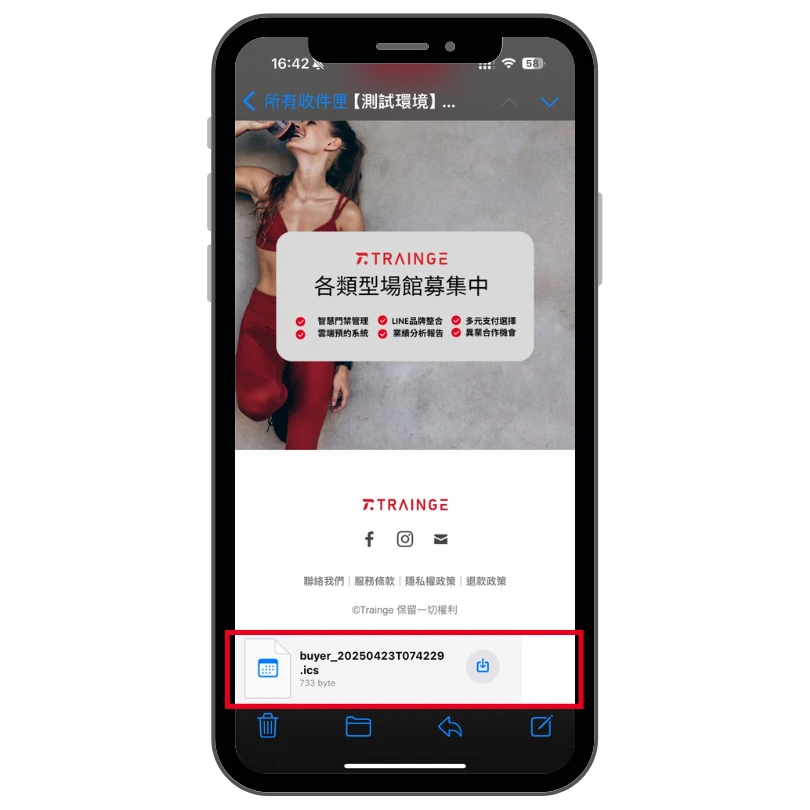
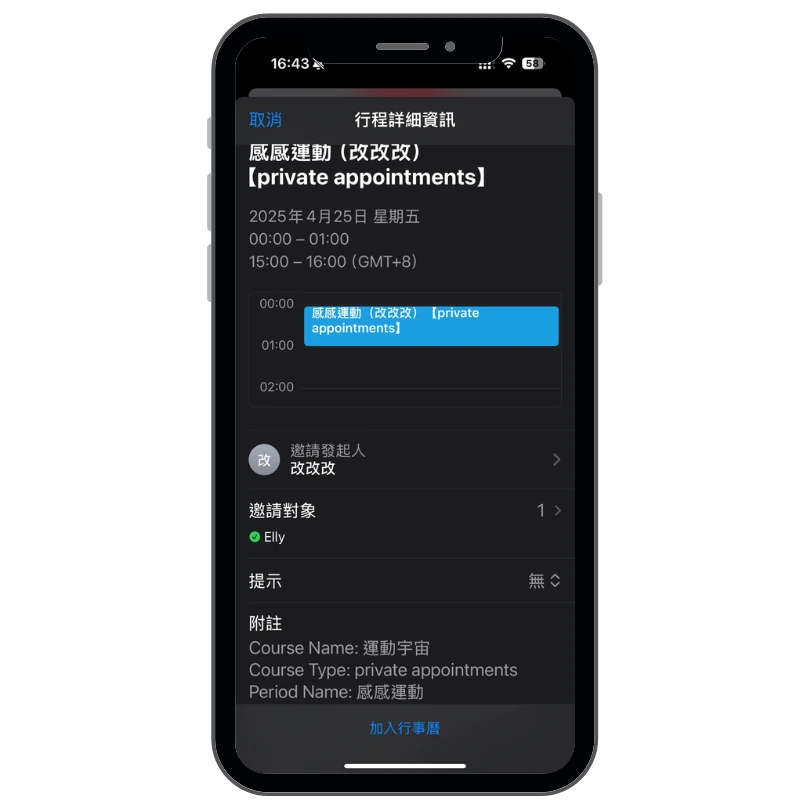
Once a course or venue rental time slot is successfully booked, a confirmation email will be sent to the consumer, the instructor, and the venue. This email will include an attached calendar file (.ics) containing the booking details. The event will also be automatically synced to the recipient's Google or Apple Calendar, making schedule management more convenient.
No additional action is required — this feature activates automatically upon booking confirmation.
Finish a Class/Venue Booking
Check Email for .ics File
View Event on Calendar App
Enhancements
Feature Description
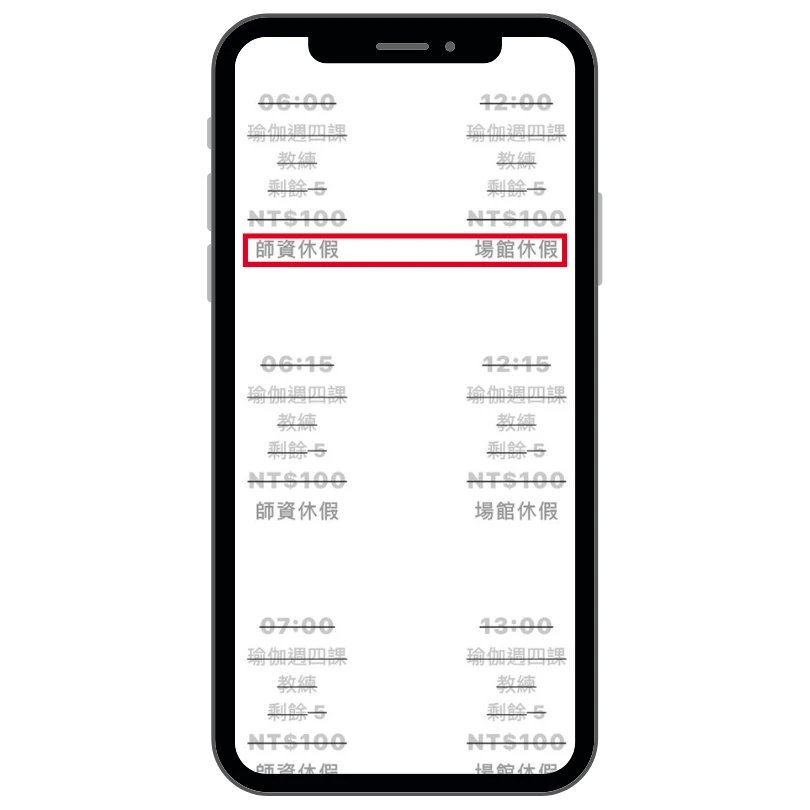
The system will proactively display the reason why a time slot is unavailable for booking on the reservation page. This helps venues and students quickly understand the situation, avoiding confusion, reducing inquiries, and preventing misunderstandings.
Display Explanations
No additional action is required — this information is displayed automatically on the booking page.
Go to Booking
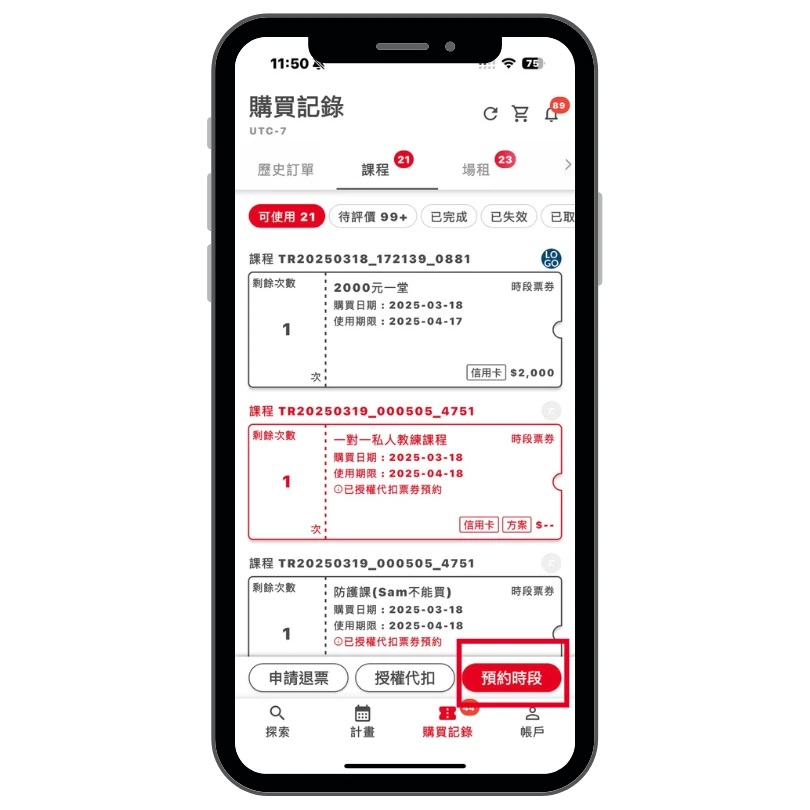
Check Timetable
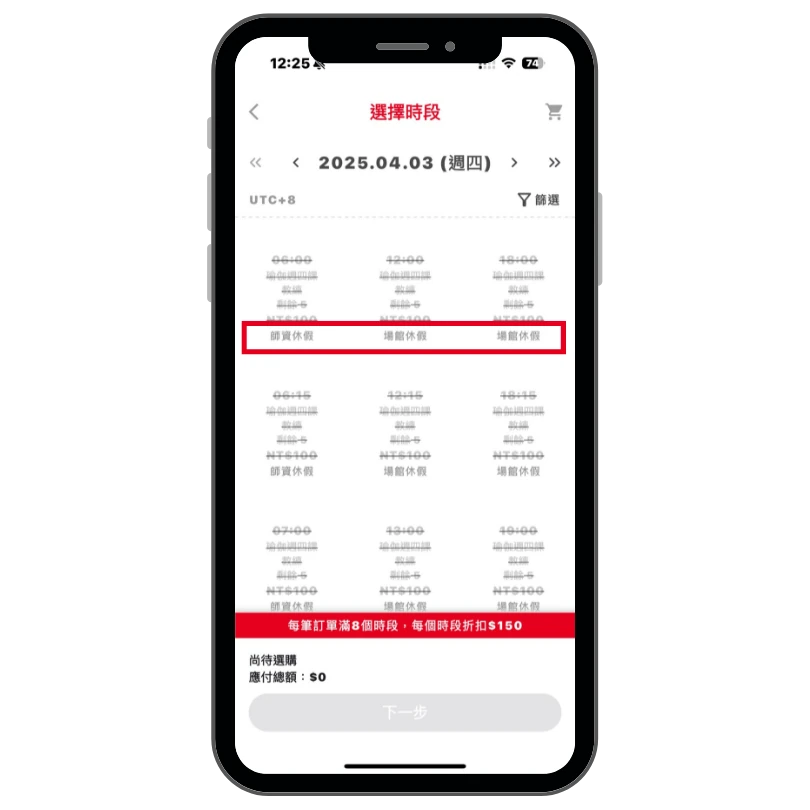
View Display Information
Restriction on Booking Time Slots After Voucher Expiry
Feature Description
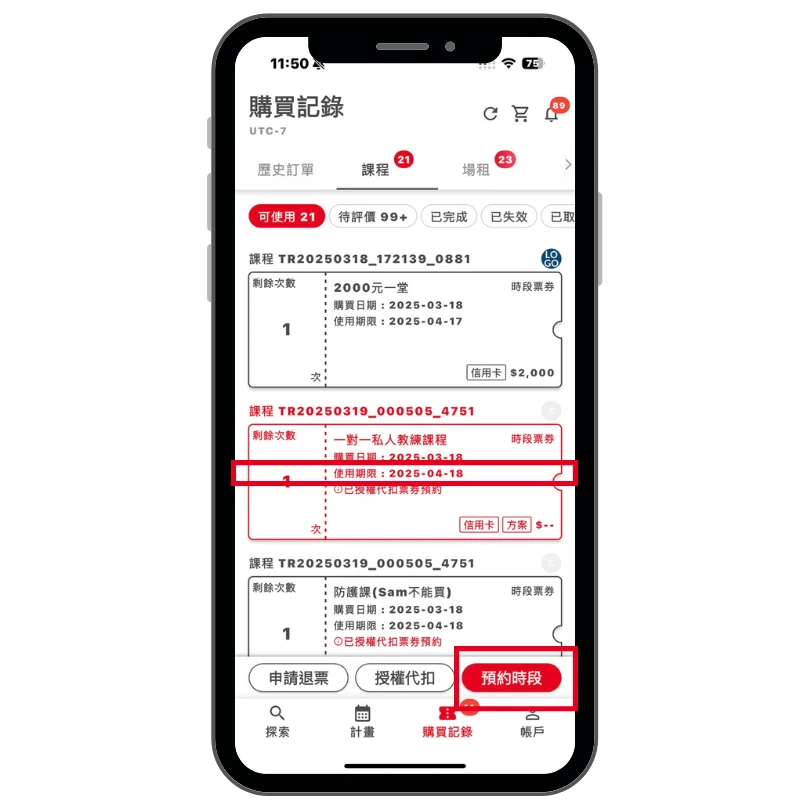
To protect the venue's interests, the system prevents students from selecting time slots that exceed the validity period of their tickets.
📍 Example: If a ticket expires on March 31, the student will not be able to book any classes scheduled on or after April 1.
Ticket Expires on APR 18
Book a Class on APR 22
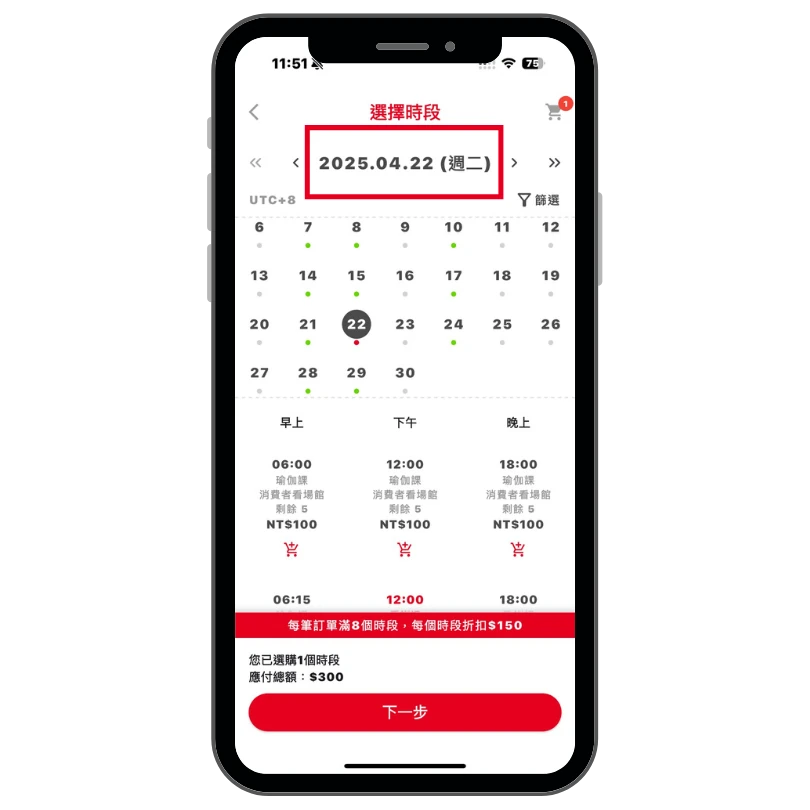
Required to Pay Full Course Fee
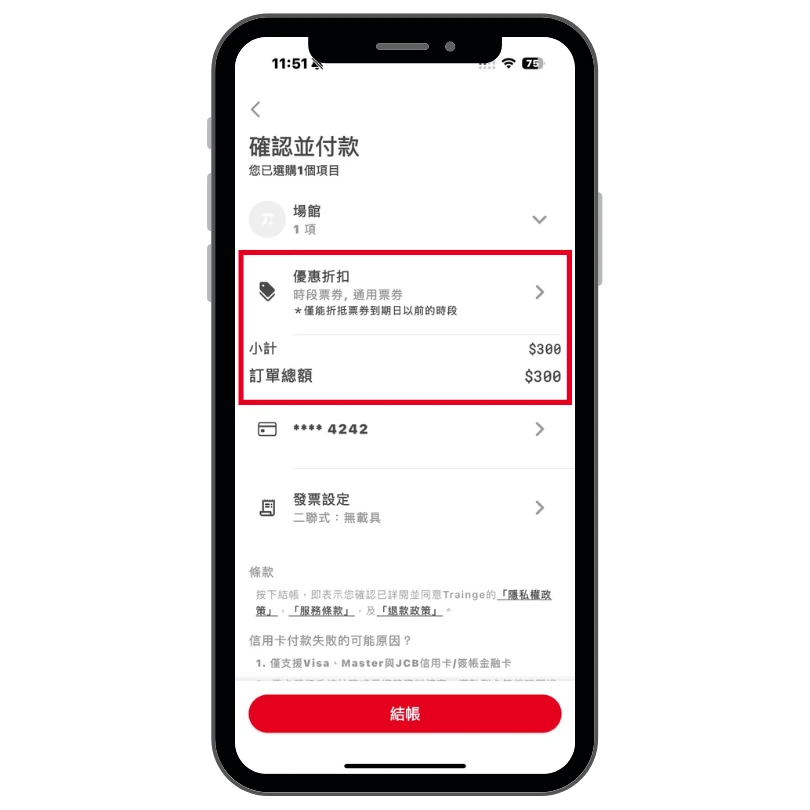
Order Number Copy Function
Feature Description
Quickly copying the order number allows for easier reference and further searches in data-related reports.
Service Provider Operation Flow
- 1Go to [Orders].
- 2Select [Order History].
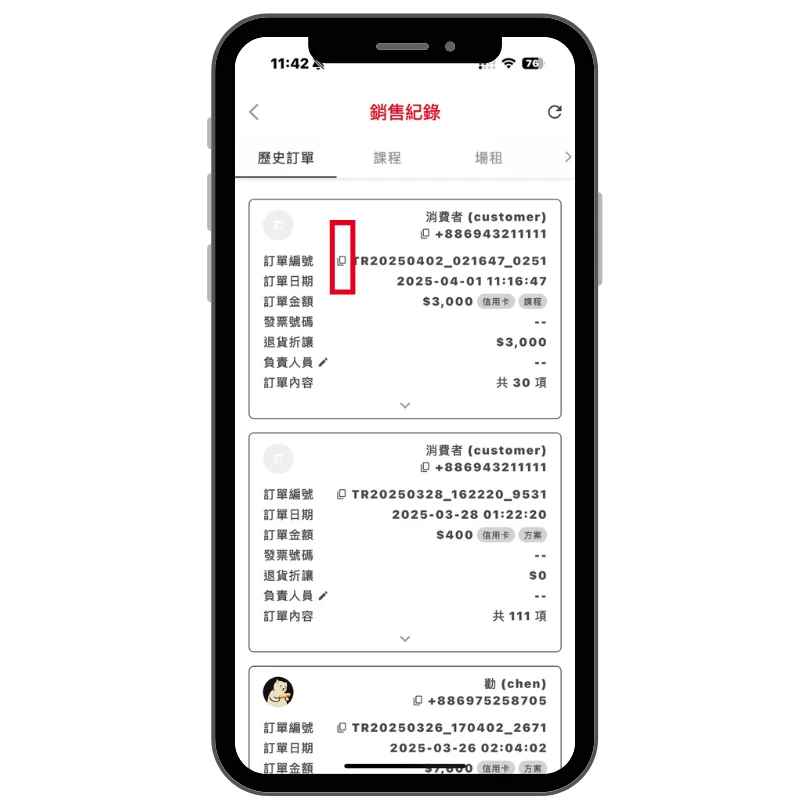
- 3Click the "Copy" icon next to the order to instantly copy the order number.
Go to Orders
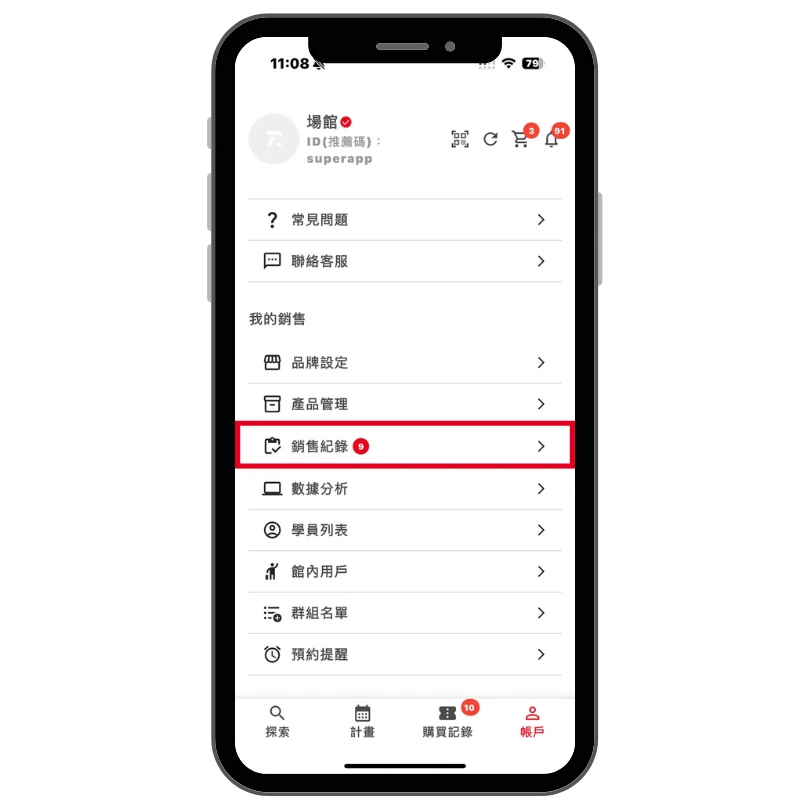
Select Order
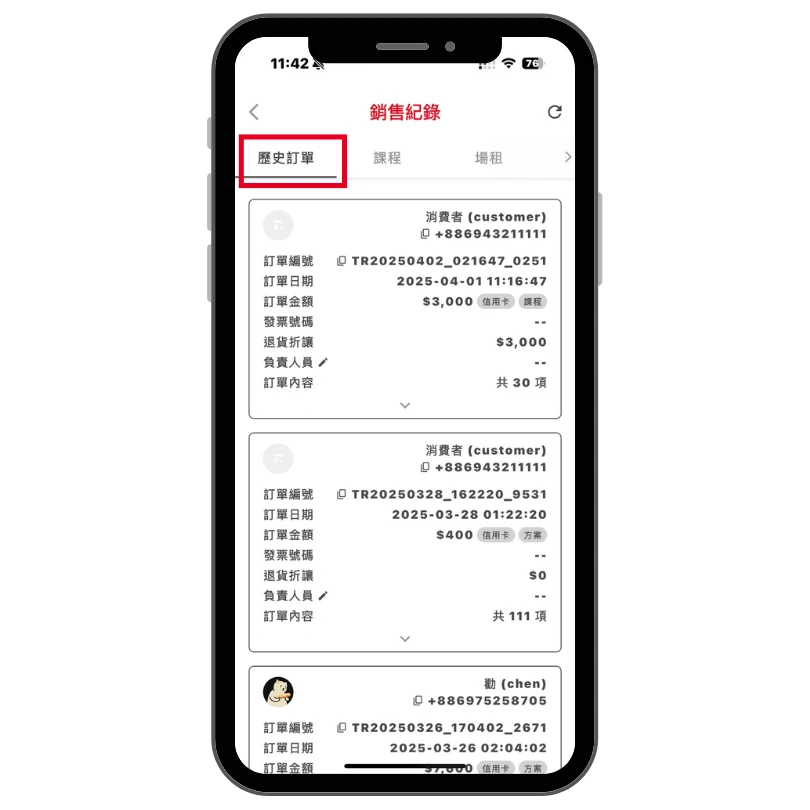
Click the Copy Icon
Coming Soon
Coming Soon
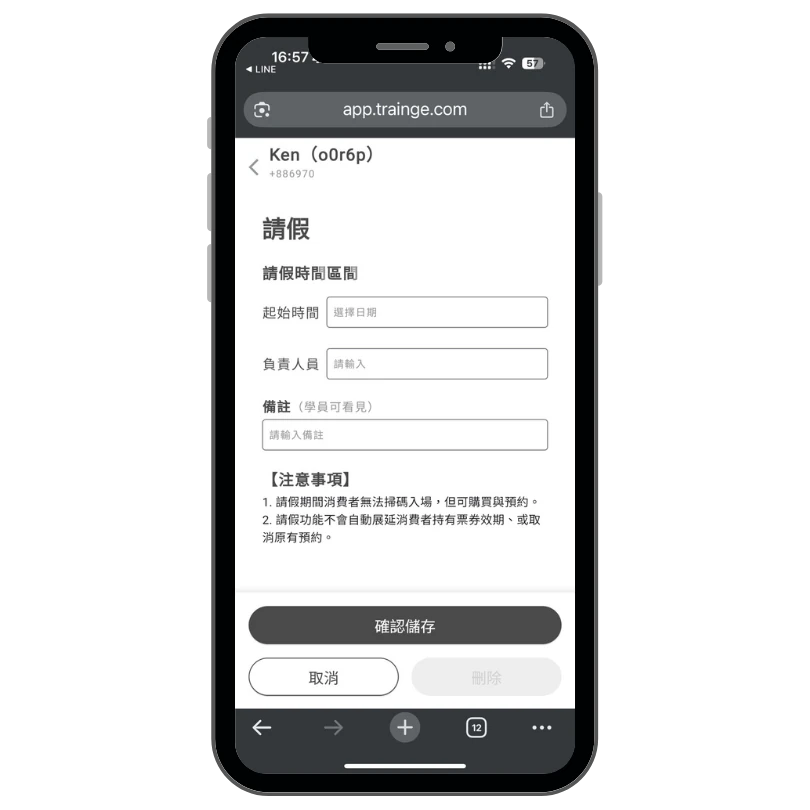
Consumer Leave Function: Temporarily Suspend QR Code Entry
We Welcome Feature Requests
If the features described above differ from what you see on your interface, please go to the [Account] page and check the version number located below the logout button to confirm it matches this update version.
If you would like to share your suggestions for improvements with the Trainge team, we would love to hear from you at any time!
LINE: https://trg.fit/lineoa
EMAIL: service@trainge.com